
Here to help · A step-by-step guide
How to Create a Celebration of Life
A simple guide to remembering someone special, one step at a time.
Explore the five stepsBegin with a memory
Take your time
Creating a Celebration of Life is a way to gather the stories, photographs, music, and little moments that made someone unique. You don’t need to have everything ready today. Start with a few details, create a private draft, and return whenever you’re ready. Nothing is published automatically.
Screenshots show an example Celebration. Select any screenshot to enlarge it. In the viewer, use Previous / Next, arrow keys, or swipe. Choose Actual size to read small text.
01 · Your starting point
Choose your Celebration
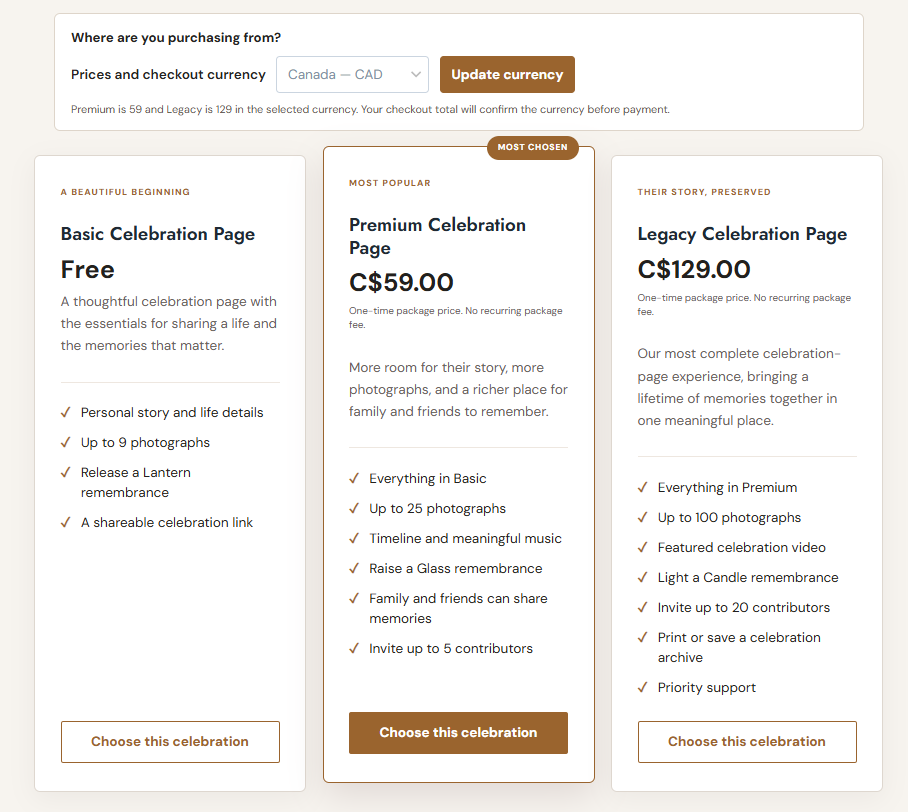
Visit the Celebration package options and choose the package that feels right. In the Canadian example, Basic is free, Premium is C$59, and Legacy is C$129. Paid packages are one-time purchases, with no recurring package charge.
Check the current package page for photo limits and included features. Select Canada or United States where offered; the currency and amount are confirmed at checkout before payment. Press Choose this celebration, sign in or create your account as prompted, and complete checkout if you choose a paid package.
02 · Create a private draft
The five creation steps
The guided creation form takes you through five steps. Optional details can wait. The longer editor shown later in this guide is where you return after creating your draft.
Step 1 of 5
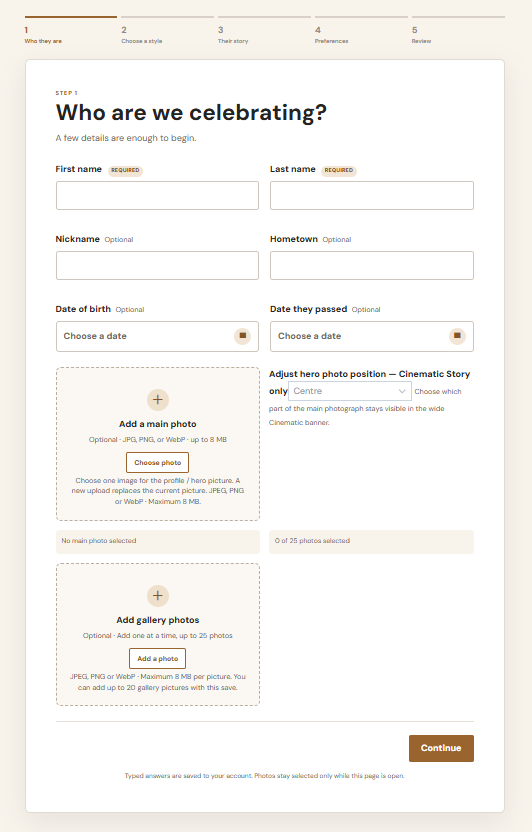
Who are we celebrating?
Enter the required first and last name. Nickname, hometown, dates, and photos are optional. Use Add a main photo and Add gallery photos if you have pictures ready.
The current upload controls accept JPG, PNG, and WebP, up to 8 MB per image. Follow the gallery count shown for your package. You can return later to add photos. Select Continue.
Step 2 of 5
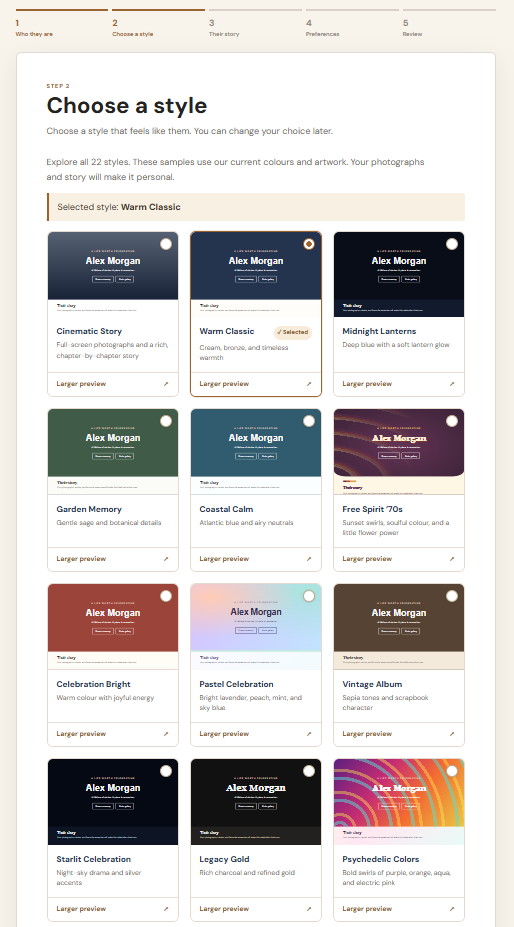
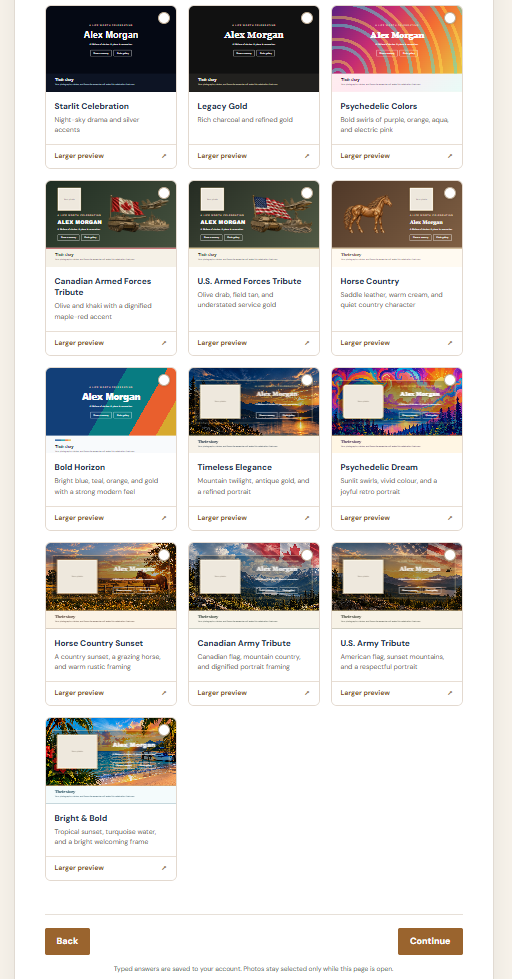
Choose a style
Browse the 22 styles shown in the full selection. Choose a thumbnail or card, then use Larger preview to look more closely. Available styles and features depend on your package.
Select Continue when you’re happy with your choice. You can change the style later in the editor while keeping your story and photos.
Step 3 of 5
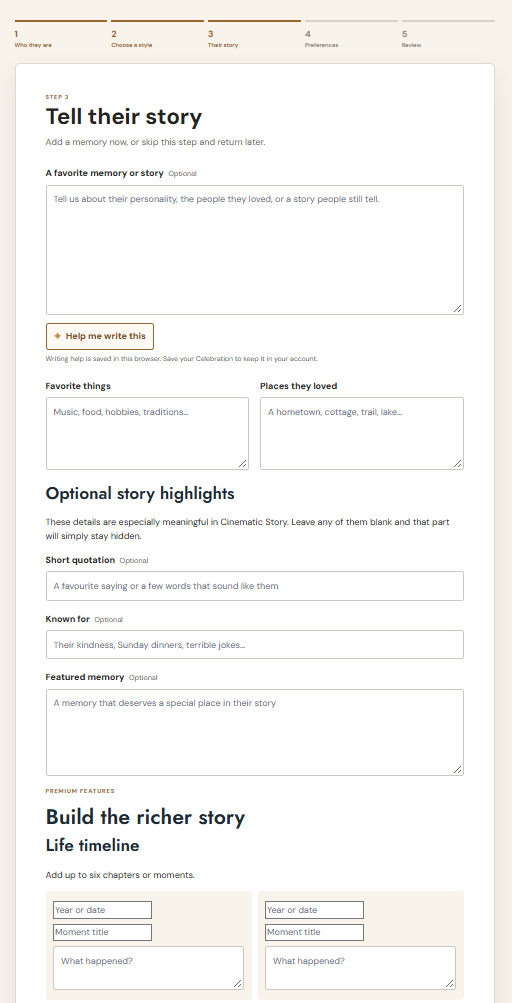
Tell their story
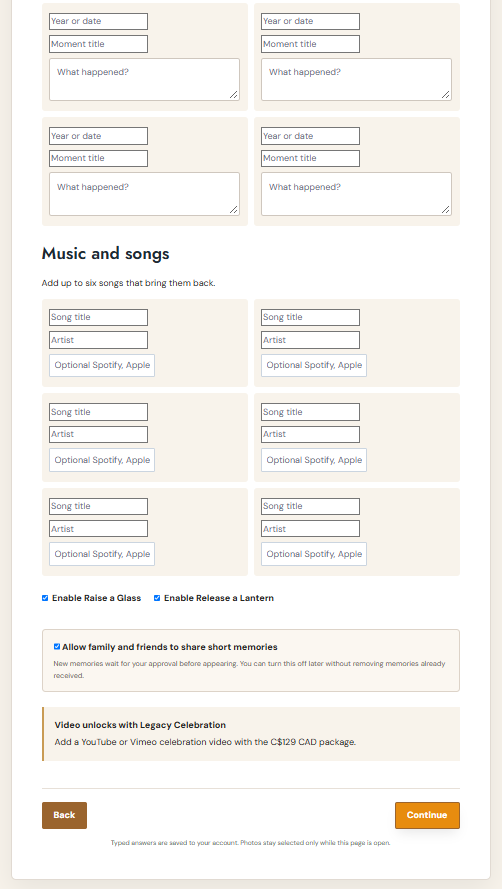
Start with a favourite memory or a few words about their life. Add favourite things, places they loved, a short quotation, what they were known for, or a featured memory. Optional extras include a life timeline and meaningful songs, where your package allows.
You can skip optional fields. A music link does not guarantee that a track will play automatically. Remembrance controls such as Raise a Glass and Release a Lantern, and family memory settings, appear where available for your selected package.
Step 4 of 5
Preferences
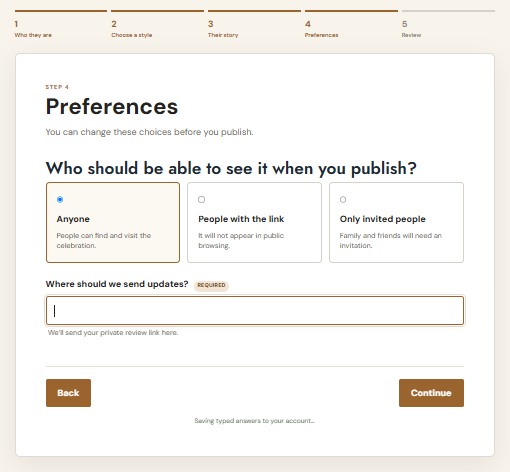
Choose who should be able to see the Celebration when you publish:
- Anyone: people can find and visit the published Celebration.
- People with the link: the published page does not appear in public browsing. Someone who receives the link can pass it on.
- Only invited people: access is restricted through invitations.
Enter the required email address for updates and the private review link. These visibility settings do not publish the page. Select Continue.
Step 5 of 5
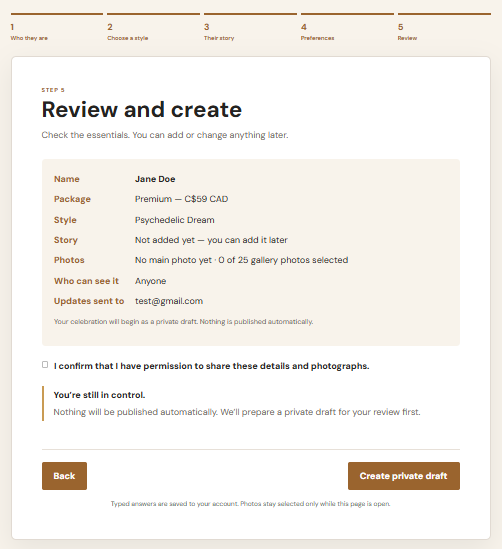
Review and create
Check the name, package, style, story, photos, visibility, and email address. Confirm that you have permission to share the stories and photographs only if this is true.
Select Create private draft. You are saving a private draft; you are not publishing it.
Your private draft is ready
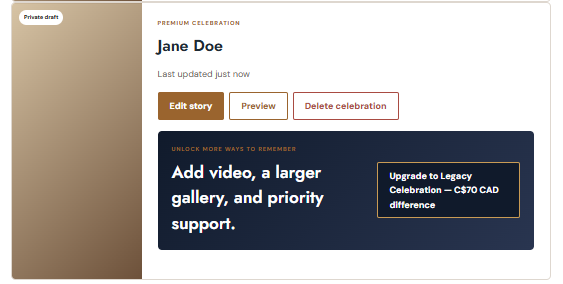
Select View my celebrations. Your saved draft appears in My Celebrations. Choose Edit story to continue working or Preview to review it.
Back to guide contents ↑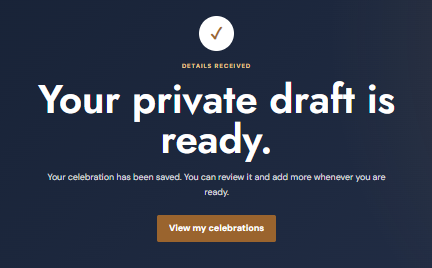
03 · An optional helping hand
Using Help me write this
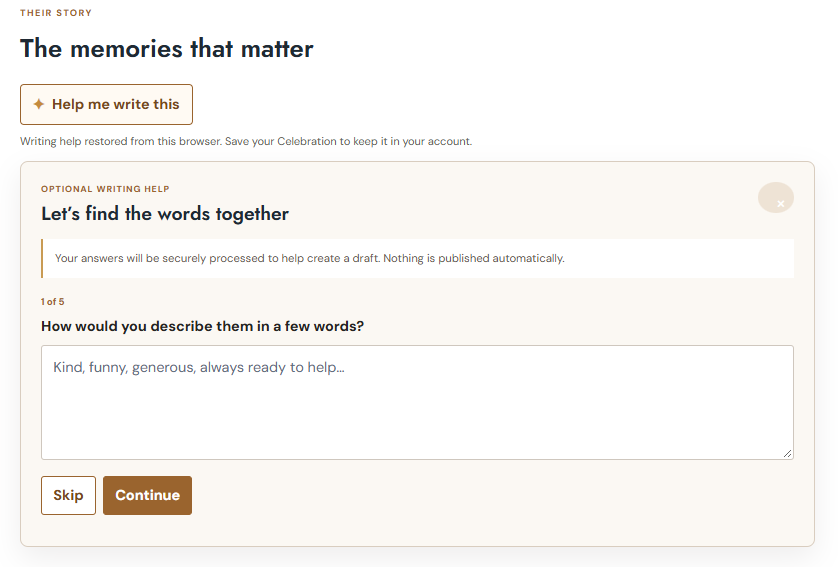
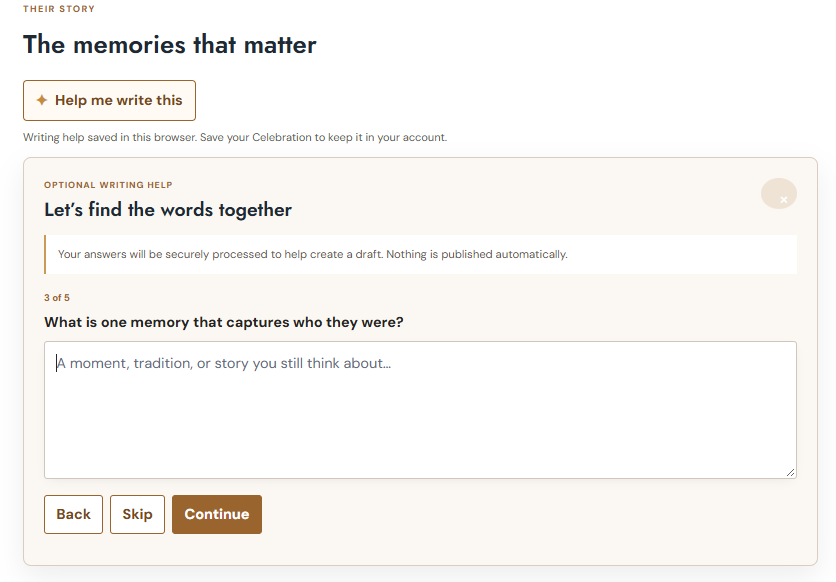
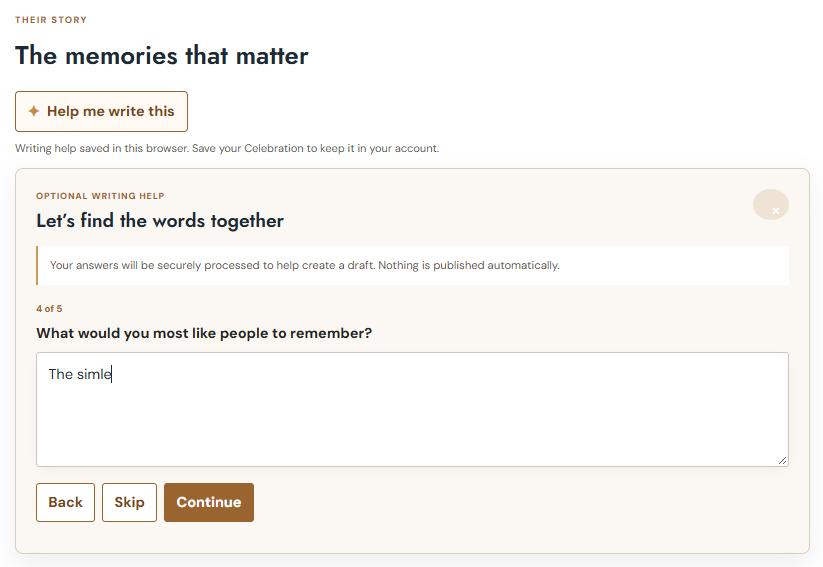
You know the person; the helper offers words to get you started. Select Help me write this in the story step and answer five short questions. Some questions can be skipped.
How would you describe them in a few words?
A few qualities or a familiar expression can be enough.
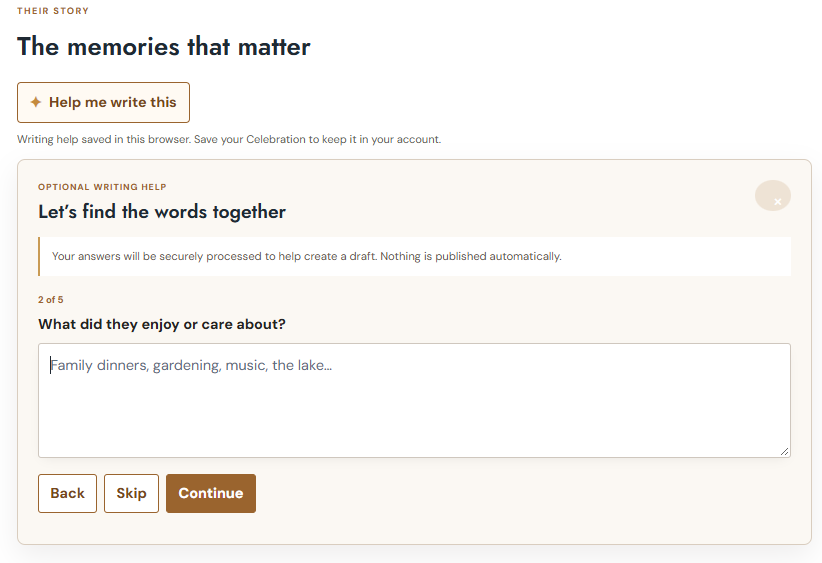
AI helper question 1 What did they enjoy or care about?
Think of hobbies, people, or everyday pleasures.
AI helper question 2 What is one memory that captures who they were?
A small, personal moment can say a great deal.
AI helper question 3 What would you most like people to remember?
Share what you hope stays with family and friends.
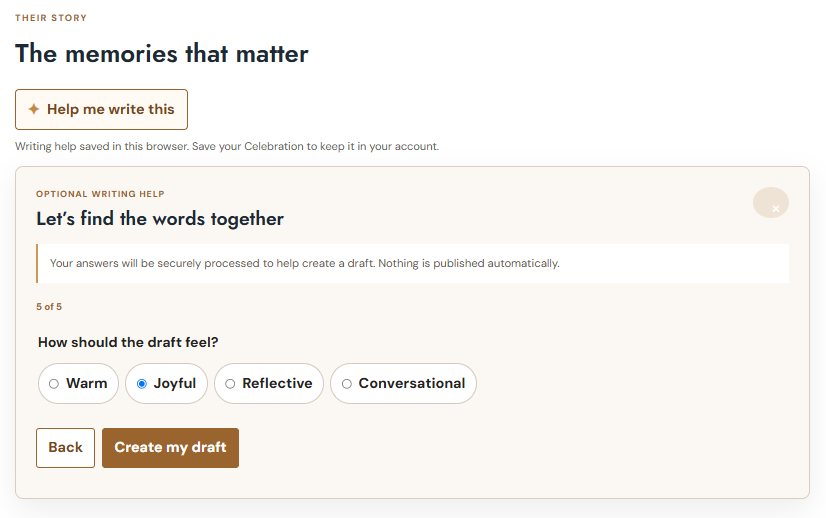
AI helper question 4 How should the draft feel?
Choose Warm, Joyful, Reflective, or Conversational, as offered. Then select Create my draft.
AI helper question 5
Review it in your own words
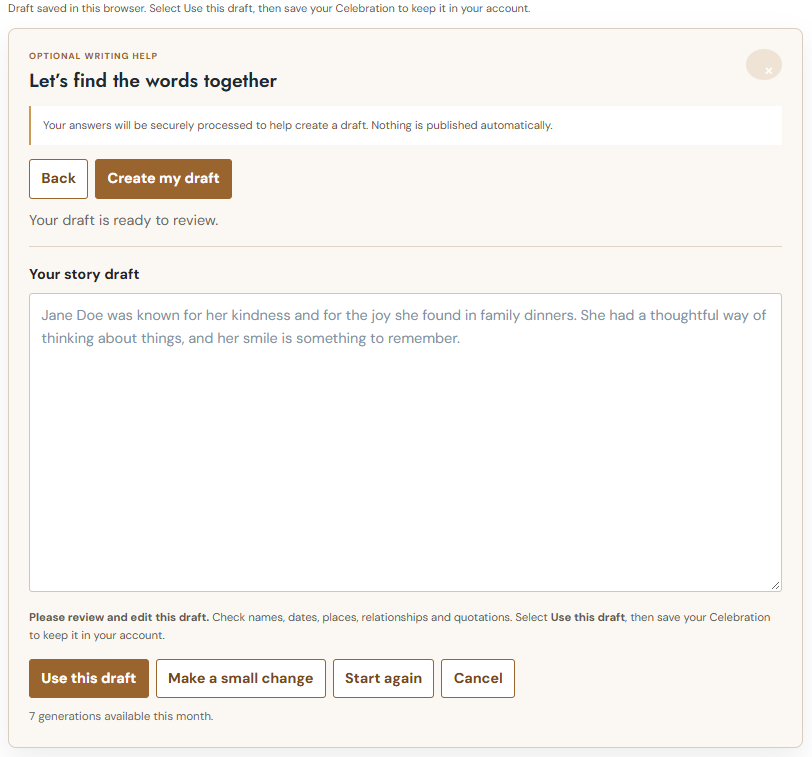
Carefully check names, dates, places, relationships, and quotations. Generated text is a starting point, not verified facts. Edit anything that doesn’t sound right.
Select Use this draft to transfer the text into your story. You can use Make a small change, Start again, or Cancel as needed. Request allowances vary by package and account; another generation may use your allowance.
Save your Celebration to retain the chosen story in your account. Accepting a writing suggestion does not publish it.
04 · After creating your draft
Add and organize photos
Open Edit story from My Celebrations to reach the longer editor. Upload or replace the main photo and add gallery pictures using its photo tools. Follow the spaces and limits shown for the selected package.
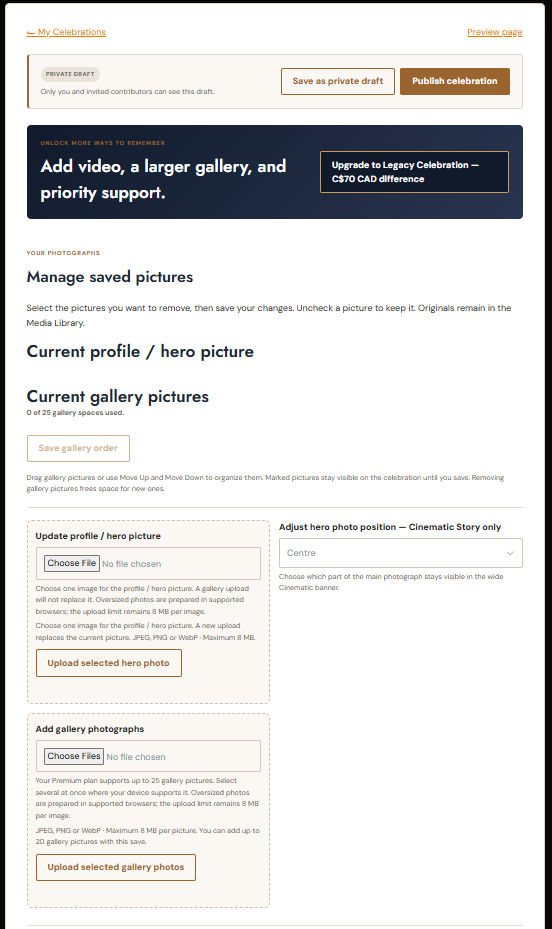
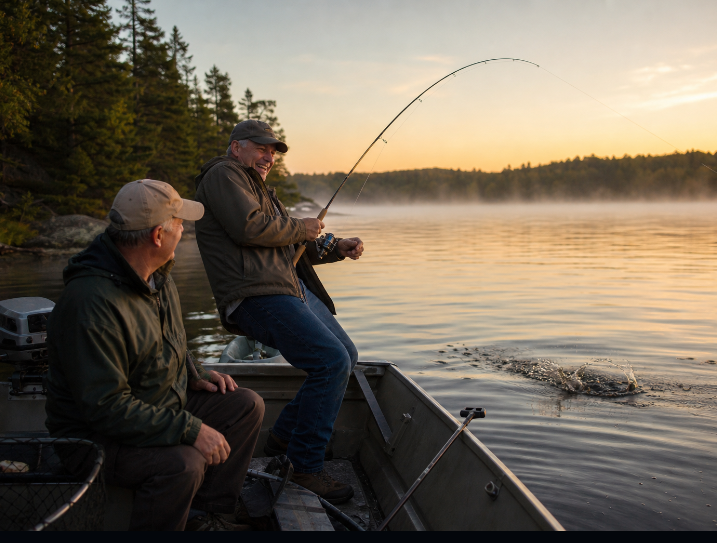
Make room for a favourite moment
Choose a clear photo you have permission to share. This example picture is for illustration only.
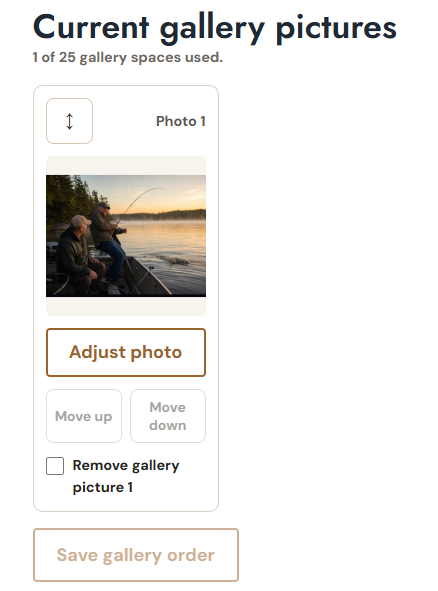
Put the gallery in order
Use the gallery’s Move up and Move down controls where enabled, then select Save gallery order. To remove a picture, mark its removal checkbox and save the Celebration with Save as private draft. Saving the order alone does not remove marked pictures. Check the saved result before leaving the page.
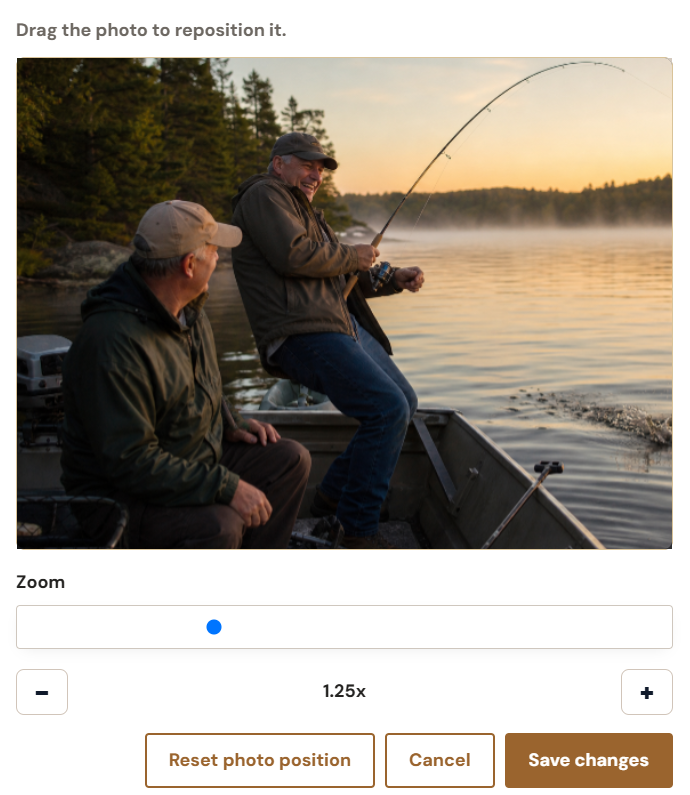
Adjust the view
Select Adjust photo. Drag to reposition the picture, use Zoom, and select Save changes. Use Cancel to leave without saving that adjustment. Preview the Celebration to check how the picture fits the chosen style.
05 · Come back whenever you’re ready
Edit and personalize later
The initial wizard helps you begin. The longer editor helps you keep building. Return to My Celebrations and select Edit story.
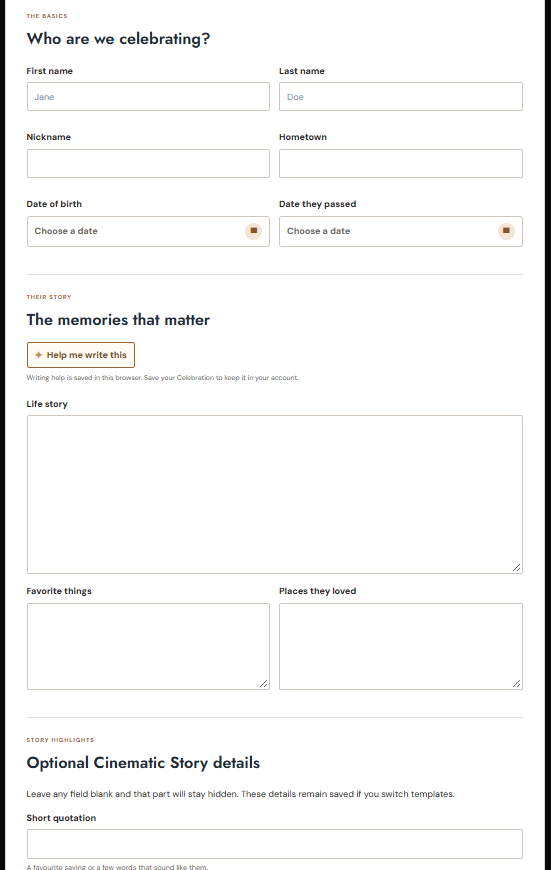
Update the basics and story
Correct details, add a memory, or revise the story. Save your draft as you work.
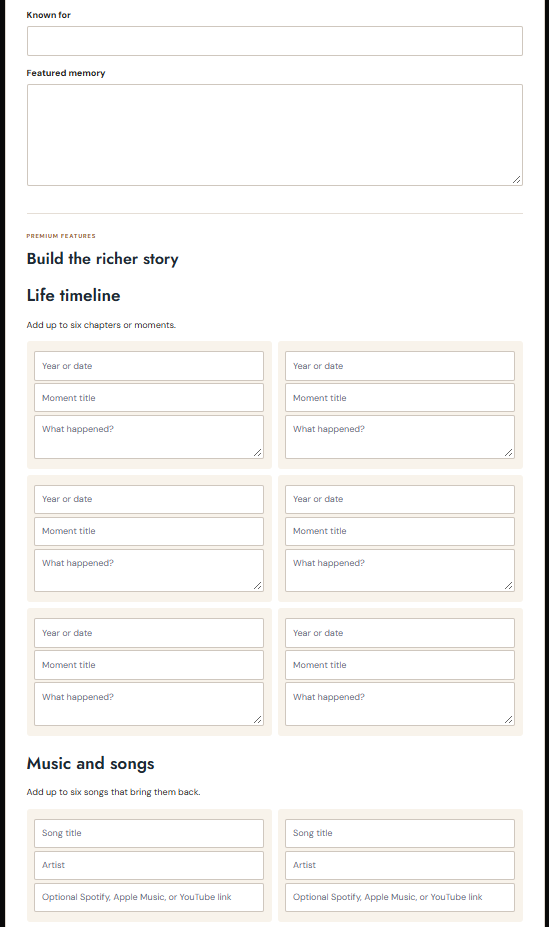
Add the little things
Include optional story highlights, a timeline, or other extras available for your package. Leave anything you’re not ready to share blank.
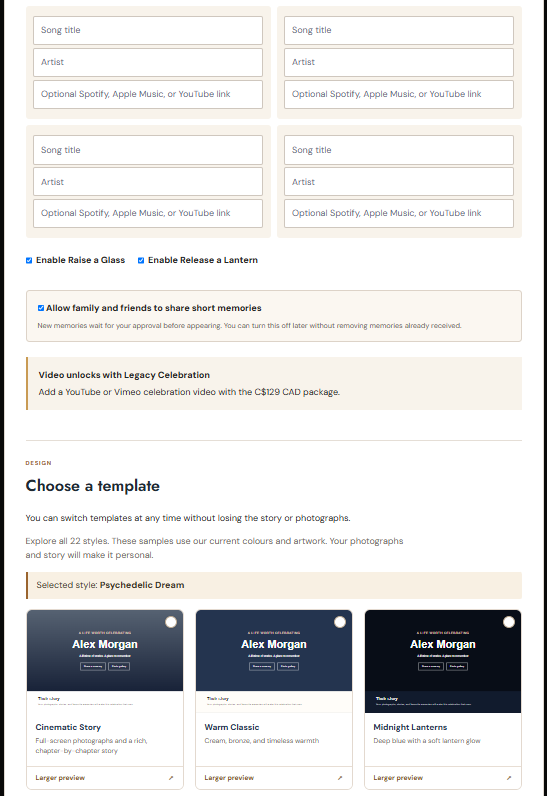
Make it feel like them
Change the template, add music where available, and review the remembrance settings for your package. Save your draft, then use Preview to check the result. Changing a style keeps your story and photos.
06 · Share only when it feels right
Privacy, family and publishing
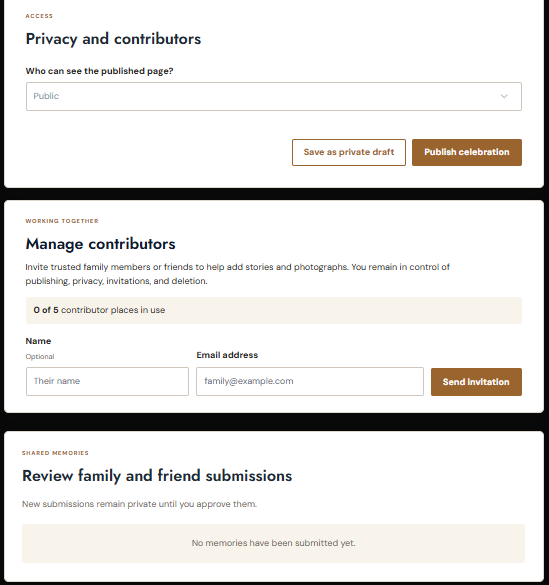
The editor’s privacy controls set who can see the published page. The editor may label these choices Public, Unlisted, and Private, corresponding to Anyone, People with the link, and Only invited people in the wizard.
Where your package permits, invite contributors by name and email. Review memories submitted by family and friends and approve those you want to appear. Follow the contributor count shown in your account.
07 · A little reassurance
Common questions
Do I need every photo and memory before starting?
No. Start with the required details and add more later.
Does a draft go public?
No. Creating a Celebration produces a private draft first. You choose when to publish.
Can I change the style?
Yes. Change it from the editor, keeping your existing story and photos. Available styles depend on your package.
What if I don’t know what to write?
The optional writing helper offers a starting draft for you to edit and verify.
Can relatives share memories?
Where your plan permits contributions, you can invite relatives and review submissions before they appear.
How do I return?
Sign in and visit My Celebrations. Find your saved Celebration and choose Edit story or Preview.
Need a hand? Read the FAQ or contact our team.
Ready when you are
Every story matters.
Begin with what you know today. The rest can come together in time.
Start a Celebration